Make it with your AI. Host it on paste page.
Resource page for tools and guides you recommend
Ask your AI for a resource page with your tools grouped by topic and tagged free or paid. Paste it into paste page and share the link.
Copy the prompt paste what your AI writes live at paste.page/frontend-resources
Works with any AI chat
- ChatGPT
- Claude
- Gemini
- Copilot
- Grok
How it works
From prompt to resource page in three steps
Your AI writes the page. paste page puts it online.
Copy the prompt below into ChatGPT, Claude or any AI. It asks for your topic, the categories, each resource with a name, a short description and its link, who put the list together and how people can suggest more, then writes the whole page.
Paste the code into paste page and pick a name for your page.
You're live. Pick your link, such as paste.page/frontend-resources, publish, and pin it in your Slack, Discord or class channel.
Your prompt
Copy it into your AI chat
I want to create a resource hub page. Ask me: 1. What's the topic or subject area? 2. What are the resource categories? 3. What resources to include? (name, description, and link for each) 4. Who curated this? (name or organization) 5. How can people suggest new resources? Then generate the complete single-file HTML page with inline CSS. Make it beautiful and responsive.
Your photos
Add logos or a cover image
Upload them in the paste page editor and each one gets its own link. Give those links to your AI and ask it to use them, or swap them in yourself.
A small logo next to each tool, a banner for your topic, your photo or team logo beside the intro.
Put each tool's logo to the left of its name, and use this image as a banner above the title.
No photos yet? Your AI uses placeholders you can swap after publishing.
Change anything by asking
Keep talking to your AI after it writes the page. Ask for new colours, fonts or sections in plain words and it rewrites the page. Paste the new version in and your link stays the same.
One list, three settings. Each one came from a single sentence.
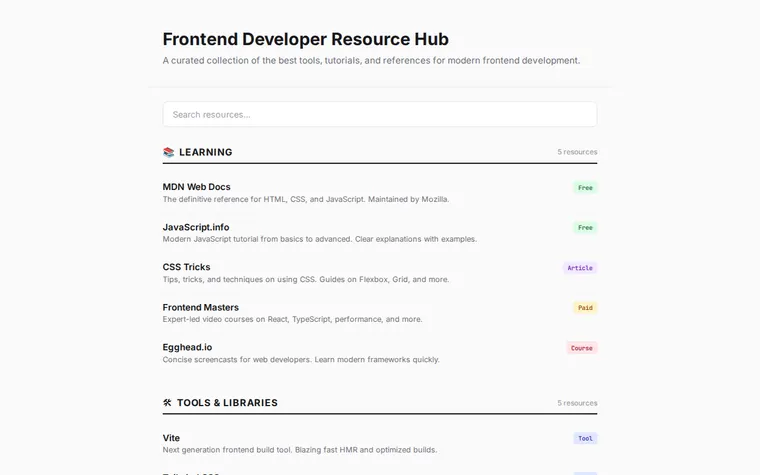
As it comes 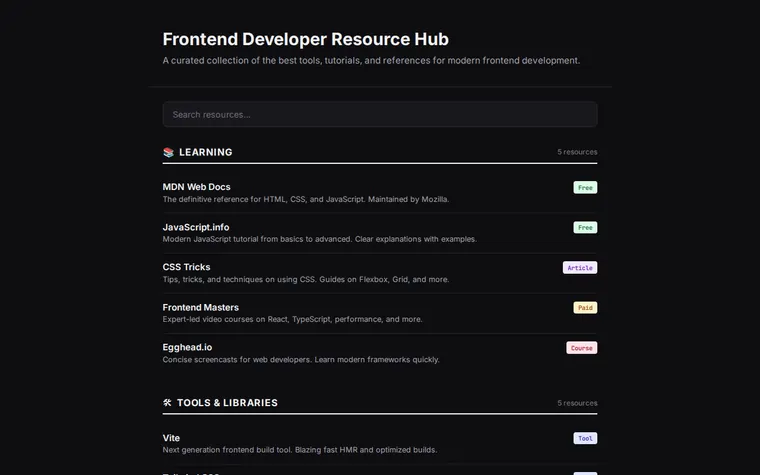
"Dark mode for our dev team" 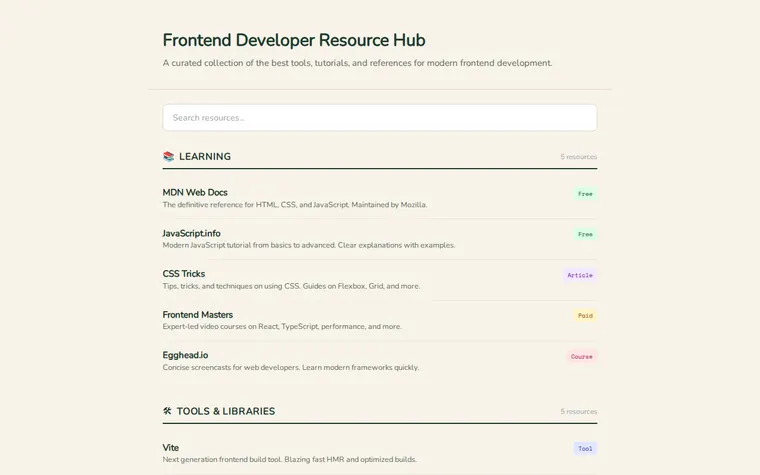
"Warmer and friendlier, it's for my Year 9 class"
More things to ask for
- Make the search box filter the list as I type.
- Add a Video tag in red.
- Put a Start here section with three picks at the top.
- Add a form so people can suggest a resource.
- Show the number of resources in each category.
What's on the page
Title and intro
What the list covers and who it's for, in a line or two.
Search box
A search field at the top so people can jump to what they need.
Categories
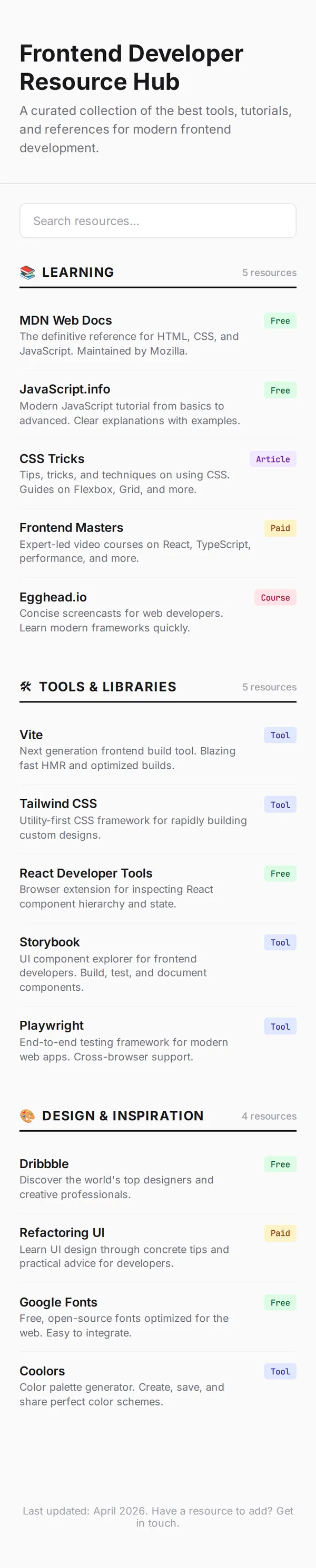
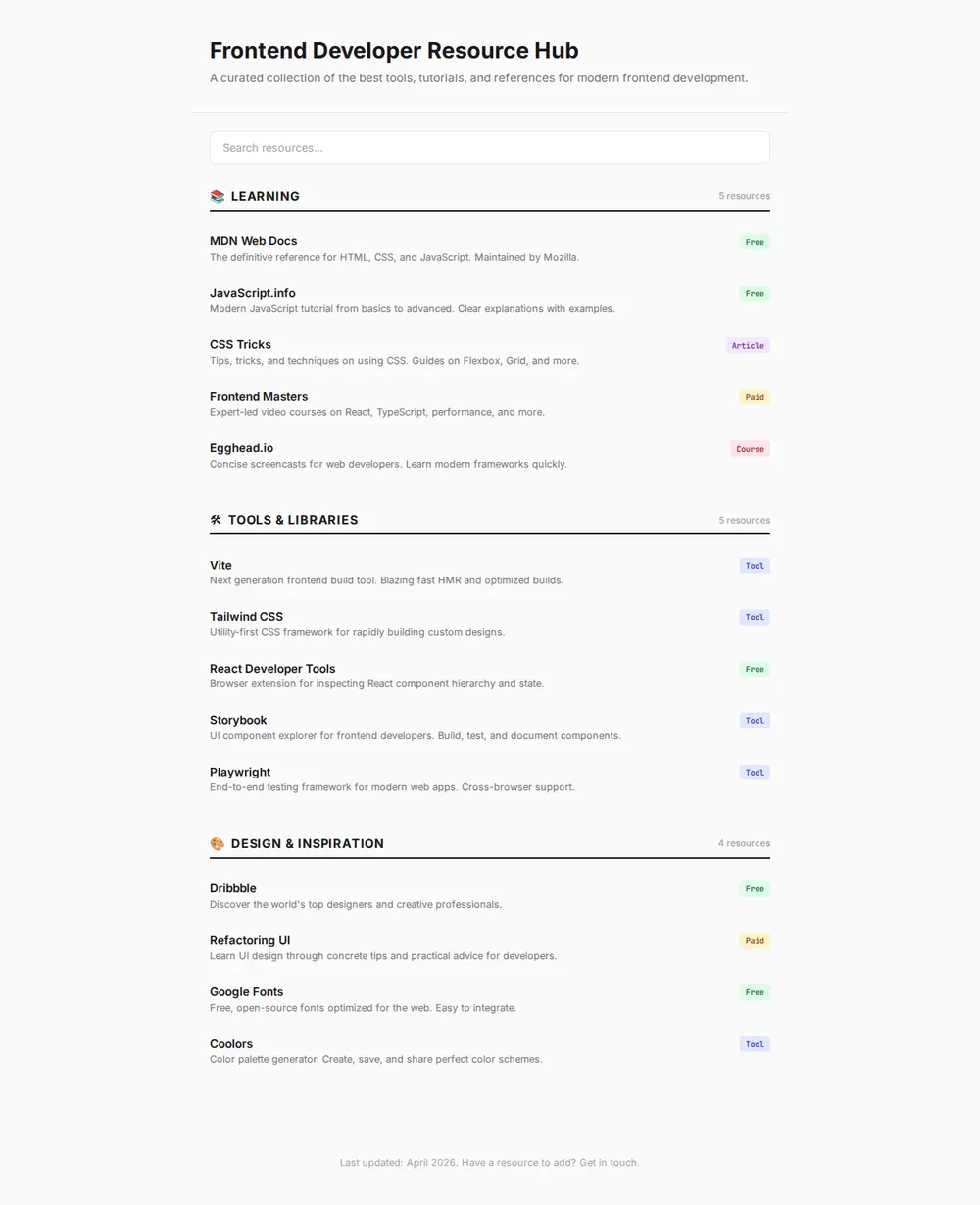
Headings such as Learning, Tools & Libraries and Design & Inspiration, each with a count of what's inside.
Resources
Each one has a name that links out, a one-line description and a Free, Paid, Tool, Article or Course tag.
Footer
When the list was last updated and how to suggest something new.
Where you'll share it
Pinned in your community
Put it at the top of a Discord, Slack or WhatsApp group so newcomers stop asking where to start.
With a class or course
Give students one link to every reading, video and tool for the term.
When you find something new
Ask your AI to add it, paste the new version in, and the link people saved still works.
Two ways to start
Let your AI write it
Copy the prompt, answer the questions, and get a page built around your details.
Start from this design
Open this exact page in the paste page editor, swap in your words and photos, and publish.
Use this templateOr skip the template. Make something weird and put it live the same way.
Questions
- Is the resource hub template free?
- Yes. Copy the prompt or use the template, then sign up free to claim your link.
- Can the search box on my resource page actually filter the list?
- Yes. Ask your AI to make the search filter resources as you type. It adds a few lines of JavaScript to the page.
- What kinds of resources page work with this template?
- Anything you'd put in a list of recommendations: tools for a team, reading for a class, guides for new parents, kit for a hobby. Tell your AI the topic and it changes the categories and tags to match.
- Can I change the Free and Paid tags on the resource list?
- Yes. Ask for any tags you like, such as Beginner and Advanced or Video and Book, each in its own colour.
- I just want a plain list of links without tags. Is there a simpler template?
- Yes. The Link Directory template is a lighter list with a name and a line for each link.
More education templates
- Link DirectoryCurated list of resources.
- Online CourseCurriculum, enroll, learn.
- Tutoring ServiceSubjects, rates, book a session.
- Research SummaryFindings, methodology, citations.